Social Listening with SocialResearch
Integration with the SocialResearch (formerly called IMM_Research) application ensures the highest quality of social media monitoring. By quickly integrating the IMM Platform with your own, public, official business profiles of brands or projects on Facebook and Instagram, you gain top-quality social media monitoring in real time. This integration allows you to monitor your own public posts and comments on Facebook and Instagram as quickly as possible (in real-time mode) and provide faster data updates on the IMM Platform, along with full statistics. This positively impacts the speed of monitoring and the frequency of interaction data updates. If you are an administrator of Facebook pages and Instagram business accounts, integrate them with the application and take advantage of real-time social listening.
The sole purpose of this integration is to improve monitoring results from own channels on META platforms, as well as to correctly classify data in the Domestic area. Without channel selection by the client, data from own channels will not be included in the IDEAS classification. This is particularly true when a brand runs multiple channels (e.g., product channels) on Facebook and Instagram simultaneously.
Instructions for integrating business accounts
To add Facebook Pages and Instagram business accounts you manage, you must complete the integration process directly within the IMM platform. The social media integration icon appears in the top bar. This icon is visible in the top menu bar.

Within this icon, we use the appropriate indication whether the logged-in user is already integrated or not. A green plugin icon indicates that integration has already been completed.

If the icon is red, it means that your company’s Meta profiles haven’t been connected yet. To do this, click the plugins icon, located next to the main menu and notifications, and then follow the on-screen instructions.
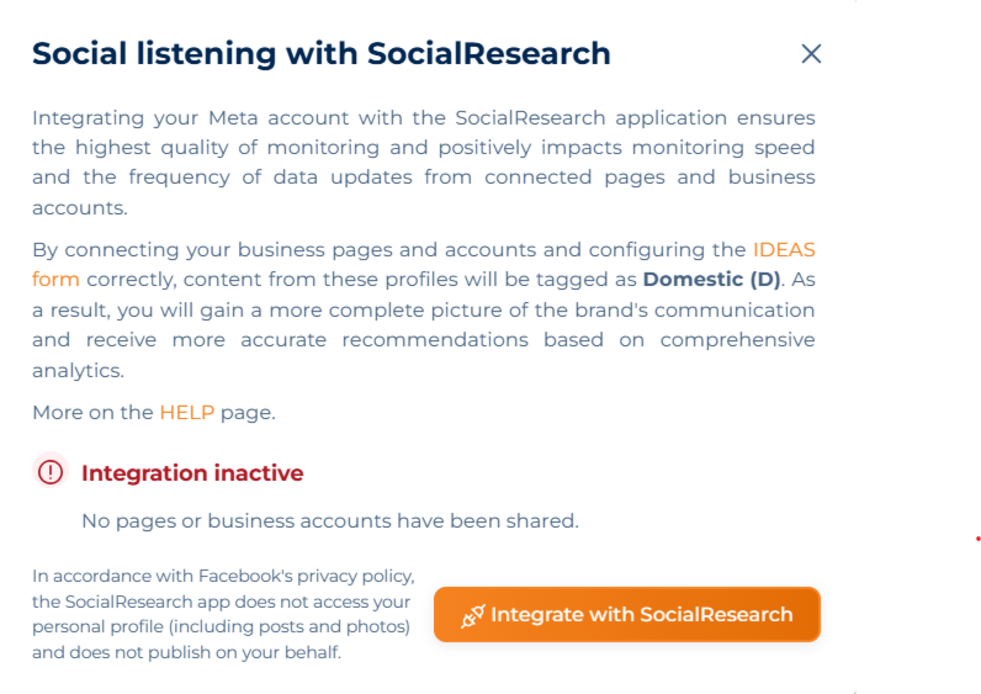
Click the orange button Integrate with SocialResearch.
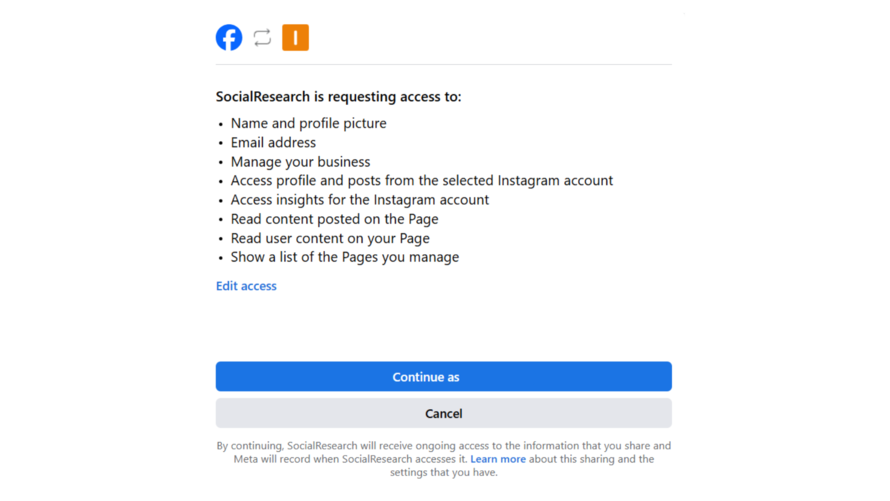
Select the appropriate business account – if you are not logged in in a given browser, the application will ask you to log in.
After logging in, if you are the administrator of several business profiles, you will be able to select the brand account and site you want to integrate:
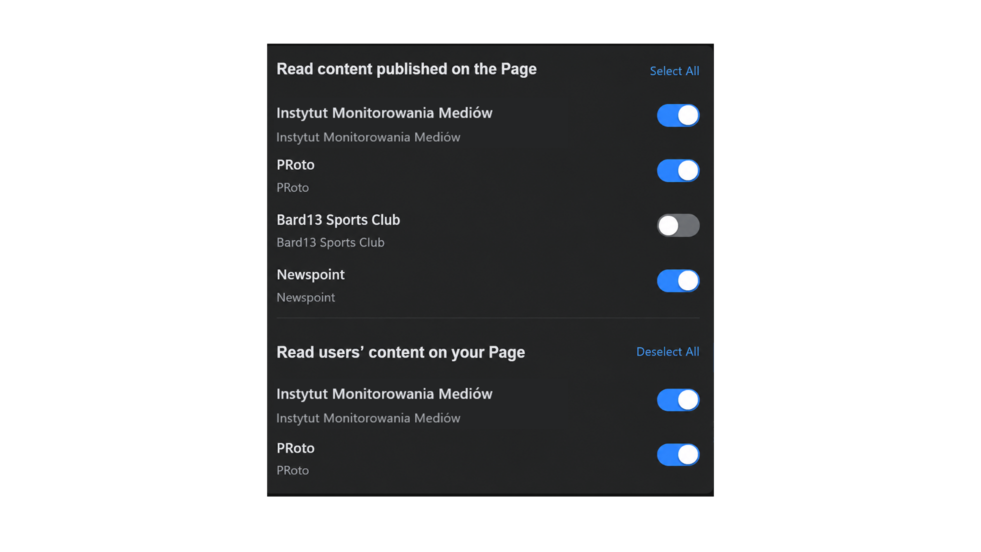
NOTE – If your company/brand profile doesn’t appear on this list and you’d like your company posts to be automatically collected on the IMM Platform, please contact the person who administers your Facebook/Instagram profile to set your profile as an administrator. Only the person who administers the business profile can integrate the company page with SocialResearch.
In the last step, select the permissions you agree to.
The following options will be displayed:
• Access your profile and posts through your chosen Instagram account,
• Access your Instagram account statistics,
• Read content published on your page,
• Read user content on your page,
• View a list of pages you manage.
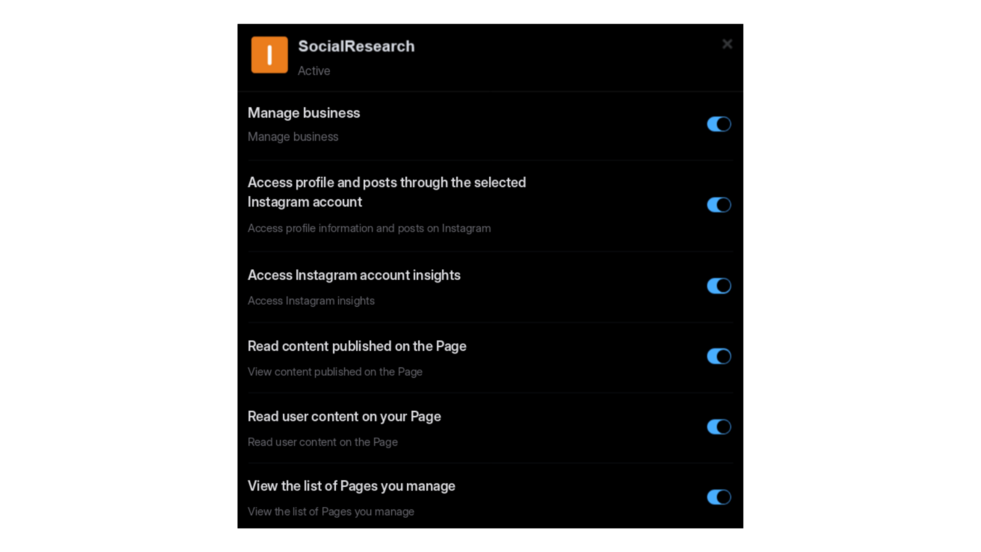
Select the ones that are right for you and click the DONE button. Your business profile has been integrated. After integration, our app only has access to post interaction updates and can monitor all posts on the brand’s official profile in real time.
🔔 The connection is fully authorized by Meta. In accordance with Facebook and Instagram’s privacy policies, the SocialResearch application does not have access to your personal profile from which the integration was made, in particular any posts, photos, or other sensitive user data.
Deactivating Meta’s business account integration
You can revoke access at any time, without involving IMM. Revoking permissions immediately invalidates the token.
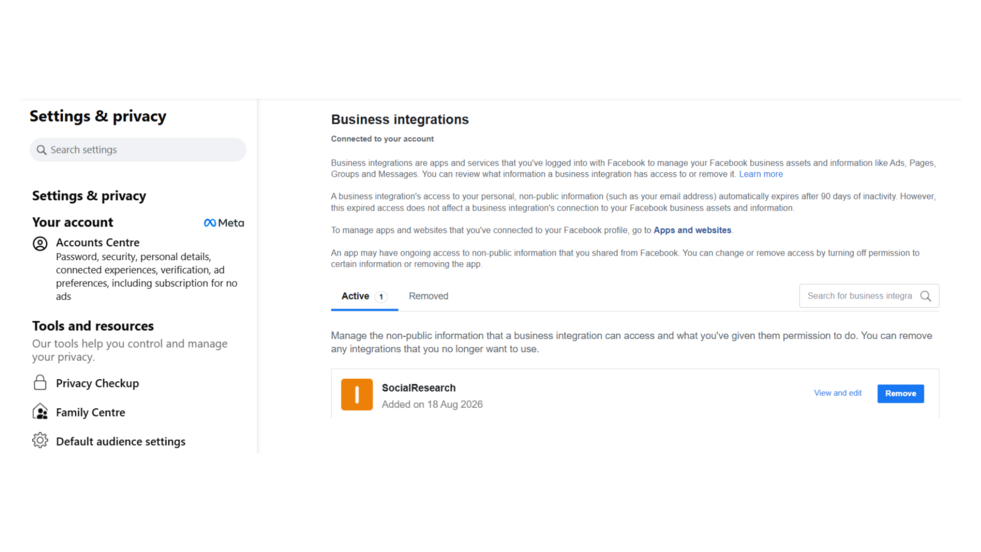
On Facebook, you can revoke access by following this path: user icon (in the upper right corner) -> Settings and Privacy -> Business Integrations (Activity and Permissions section) -> SocialResearch -> Delete.
Or directly via the link https://www.facebook.com/settings/?tab=business_tools.
In the same place, you can also revoke individual permissions granted during the Integration. Click -> View and Edit and make the appropriate changes.